graphic
- Layer
With Layer we mark the
two processing status of an attitude, i.e. the condition of the erd-Aushubs
before the transfer of the channel and the condition of the again -
installation of soil after the transfer of the channel. Between both Layern
with the space bar one shifts up and down. Both Layer are graphically
separately machinable. Designed points are indicated in both Layern, active
points are grey represented black, inactive (= duly on the other hand the
Layer).
- Screen
The screen divides into
four pictures. Their arrangement in the clockwise direction: Cross section,
profile, sketch and net picture. The sketch refers always to the opened
attitude, the net picture represents the entire duct system. By clicking and
pulling to the fensterbalken and/or on the window cross the window sizes are
changed. The individual windows must before treatment through mouse-click to be
activated, only then are possible an action in it.
- Zoom
At Menü in Ansicht =>
....
In all screen windows uniform zoom functions are available. In
principle with the right mouse button one gezoomt. The functions zoom shot are
near (+Lupe), to zoom shot far (- magnifying glass), LF (= last window, last
cutout), pan (with double frameworks + right mouse button picture in the window
is at will shifted) and eyeglasses (zoom shot of everything) at the disposal.
With all zoom shot operations with the right mouse button the construction
function (e.g. polar manhole construction in the net picture, lotpunkt in the
profile) remains and can after the zoom shot be continued.
Repeated
clicking with the left mouse button on + and/or. - magnifying glass supplies a
centric zoom shot in each window to the proximity and/or to the
distance.
Zoom with the MouseWheel is now in each window possible. Wheel
forward = zoom shot far, Wheel back = zoom shot near, pressure on MouseWheel
and Mouse move = picture hang on the Mousepfeil, thus Pan
function.
- Show DXF
At Menu in Ansicht =>
Hintergrundbilder
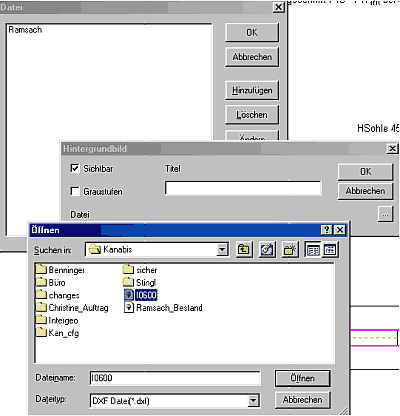
The read in DXF picture is looked for over the
Windows path and represented in the net picture. As many as desired DXF
pictures can be read in and represented. Kanabis offers the possibility of
in-grey individual DXF pictures at the screen in order to emphasize the
contrast to the duct system picture.
With the menu option opinion => points of
construction to activate DXF points for construction purposes can be activated.
DXF points are activated only in the visible zoom shot window, all points
outside remain passive. By points of construction to deactivate the action can
be cancelled.
- Cursor
M-Key
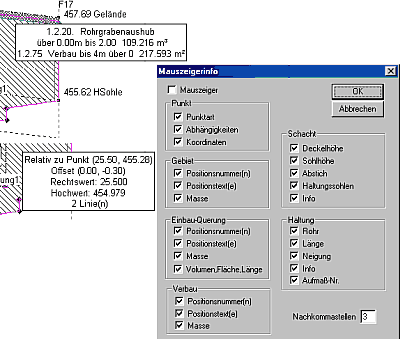
This function makes
information (see below), which hangs visible on surfaces or points in the
diagram. In addition it, the pointer of mouse is sufficient into the proximity
of one point, a pit, to bring an attitude or an area and the information
appears beside the pointer of mouse.
- Measuring
At Menu in Ansicht =>
Messen
Distance: with this function you can measure direct
distances between points and/or pits.
Charge: thus you can
represent orthogonale distances from points on a datum line. The abscissa (=
measure in the line) and the ordinate are spent (= lateral. Distance to the
line) indicated.
Example charge: Was away a house corner to an attitude.
Activate the points of construction in the DXF picture, then function taking
into account select, which both pits of the attitude click, the datum line
becomes green. Subsequently, jump up the result mask and show abscissa and
ordinate select the house corner.
|
|